

 De
De  Fr
Fr  Pt
Pt  En
En 

-
-
-
-
-
-
-
-
-
Point Cloud Optimization
-
-
-
-
-
-
-
-
-
-
-
-
-
-
Point Cloud Optimization
 Ribbon: Point Clouds – Point Cloud >
  Reducing the Point Cloud
Menu: Point Clouds > Reducing the Point Cloud
Toolbar: Point Clouds 3DScan > Reducing the Point Cloud
 Command line: PC_VOXEL_DOWNSAMPLE
Decreases the number of points in the selected cloud.
The processing time for large saturated clouds can be unacceptably long. The command allows you to eliminate the excessive saturation of the point cloud - thin out the cloud. The command simplifies a point cloud by breaking it down into cubes (voxels) and leaving only one point in each.
This command differs from the Display all points mode, which only hides the extra points on the screen without modifying the cloud itself. Hiding extra points on the screen speeds up cloud navigation and cloud rendering, but does not affect the running time of cloud processing commands.
The command options are set in the Properties bar.
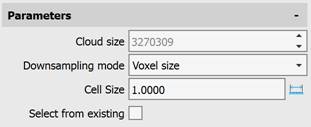
Options:
|
Cloud size |
The number of points in the cloud before simplification. |
|
Downsampling mode |
Voxel size – specifies the voxel size. The smaller the voxel size, the more points will remain. Points count – specifies how many points should remain, and the voxel size is automatically selected. Points percentage – specifies the percentage of points that should remain. |
|
Cell Size |
The size of the conditional cell. The command reduces the number of cloud points by averaging coordinates and attributes in cubic cells of the specified size. The larger the cell size, the fewer points will remain in the cloud and the higher the speed of its further processing. |
|
Select from existing |
No - a point is created in each voxel, calculated as the arithmetic mean of the cloud points that fall within it. Yes - the existing cloud point closest to the arithmetic mean is selected. |